
Getting Started
Faucet turns a PostgreSQL, MySQL, MariaDB, SQL Server, Oracle, SQLite or Snowflake database into a secure REST API and an MCP server for AI agents. It is a single open-source (MIT) binary with a built-in admin UI, role-based access control and an OpenAPI 3.1 spec. This page takes you from install to your first API call in a few minutes.
Installation
npm (Node.js 18+)
The fastest way to try Faucet — just run one command:
npx @faucetdb/faucet serveOr install globally:
npm install -g @faucetdb/faucet
faucet serve
Homebrew (macOS / Linux)
brew install faucetdb/tap/faucetGo Install
Requires Go 1.25+:
go install github.com/faucetdb/faucet/cmd/faucet@latestDocker
docker pull faucetdb/faucet:latest
docker run -p 8080:8080 -v faucet-data:/data faucetdb/faucet:latest
Binary Download
Download pre-built binaries from the GitHub Releases page. Available for:
| OS | Architecture |
|---|---|
| Linux | amd64, arm64 |
| macOS | amd64, arm64 |
| Windows | amd64, arm64 |
Extract and place the faucet binary in your PATH.
Build from Source
git clone https://github.com/faucetdb/faucet.git
cd faucet
make build
# Binary is at ./bin/faucet
To build with the embedded admin UI:
cd ui && npm install && npm run build && cd ..
make build
60-Second Quickstart
1. Start Faucet
faucet serveThe server starts in the background and returns control to your terminal:
 _____ _   _   _  ___ ___ _____
|  ___/ \ | | | |/ __| __|_   _|
| |_ / _ \| |_| | (__|  _| | |
|_| /_/ \_\___,_|\___|___| |_|

  Faucet v0.1.14 | Database → API in seconds
  Listening on http://0.0.0.0:8080
  Admin UI:   http://localhost:8080/
  OpenAPI:    http://localhost:8080/openapi.json
  MCP:        http://localhost:8080/mcp

  First run detected! Set up your admin account:
    Web UI:  http://localhost:8080/setup
    CLI:     faucet admin create --email admin@example.com --password changeme123

  Server running in background (PID 12345)
  Logs: ~/.faucet/faucet.log
2. Create your admin account
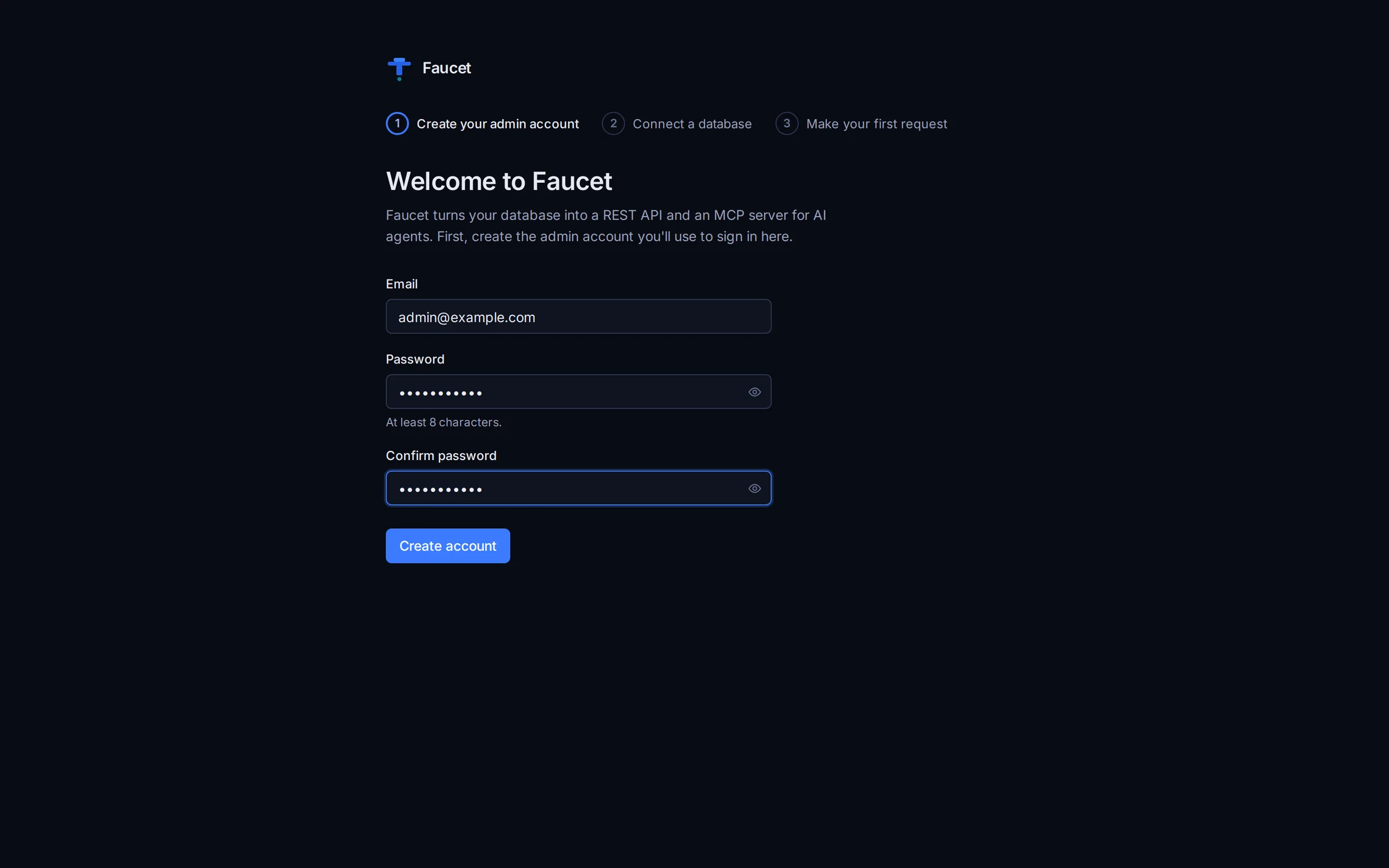
Open http://localhost:8080 in your browser. On first run, Faucet opens the setup wizard. Enter an email and a password of at least 8 characters.
3. Connect a database
Pick your database, then enter the same details you'd give any database client: host, port, database, username and password. You don't need to write a connection string or escape special characters in your password. Click Test connection. Faucet connects, counts your tables, and the line from your database to /api/v1/<name> lights up. Then click Add database.
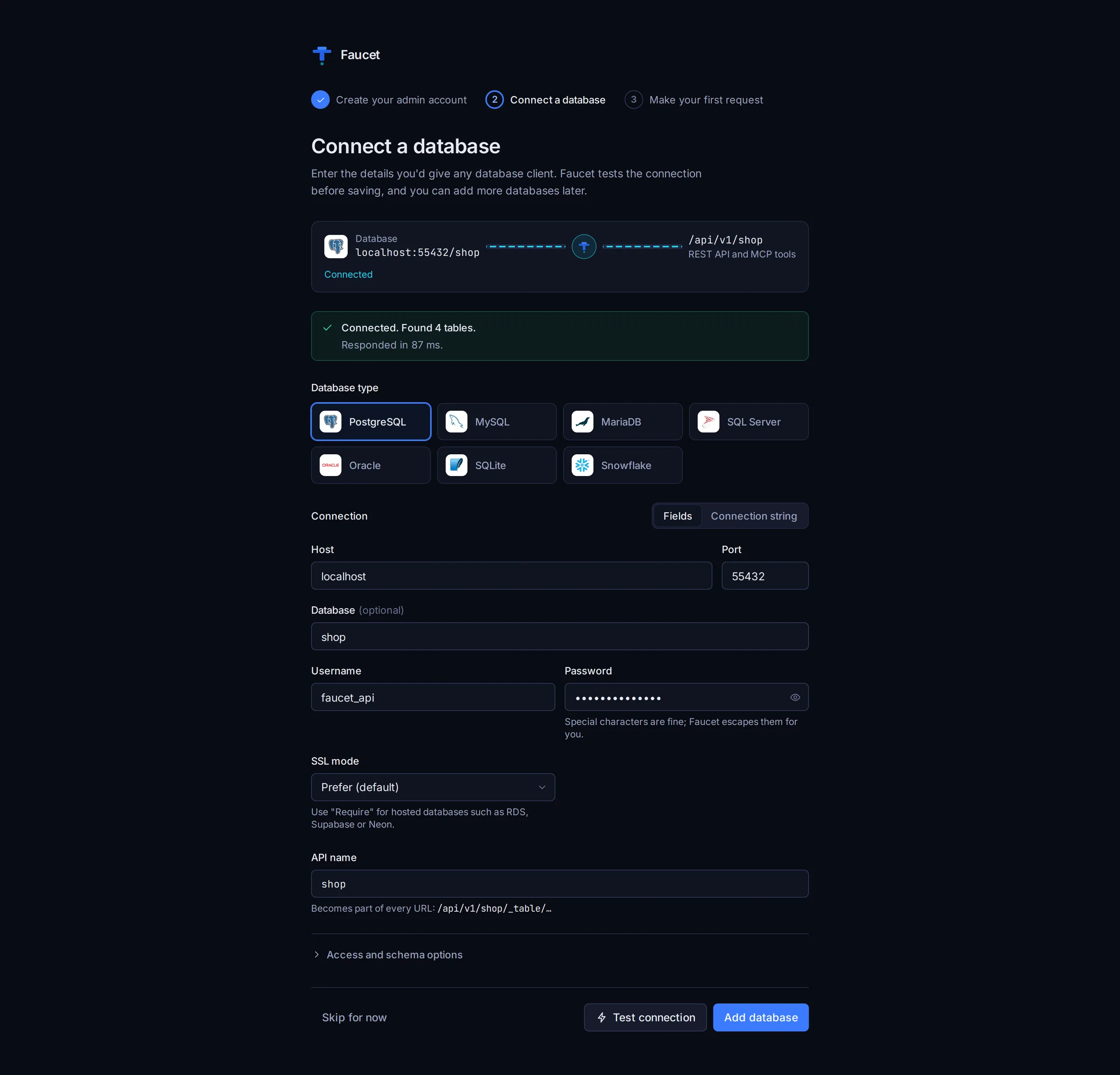
The API name (filled in from your database name) becomes part of every URL, so shop gives you /api/v1/shop/_table/orders. If the test fails, Faucet tells you what to check: a refused connection, an unknown host, a wrong password, or TLS settings. See Admin UI → Connect a database for every option, including connection strings and the per-database fields.
4. Create a key and make your first request
Faucet's REST API and MCP server authenticate with API keys, and every key carries a role that says what it may do.
- Open Roles and create a role. For a first test, Read only on All databases is a good choice.
- Open API keys, click Create key, and pick that role. Faucet shows the key once, along with a
curlcommand and an MCP config that already contain it.
# List the tables in the "shop" database
curl http://localhost:8080/api/v1/shop/_table \
  -H "X-API-Key: faucet_YOUR_KEY"

# Query records with a filter, newest first
curl "http://localhost:8080/api/v1/shop/_table/orders?filter=status%3D'shipped'&order=placed_at%20DESC&limit=10" \
  -H "X-API-Key: faucet_YOUR_KEY"
The Overview page tracks these steps for you, and the API explorer sends requests from the browser without any key setup.
5. Connect an AI agent (optional)
Open AI agents (MCP) in the admin UI, paste your key, and copy the ready-made config for Claude Code, Claude Desktop, Cursor, VS Code, Windsurf or ChatGPT. See the MCP Server guide for details.
Prefer the command line?
Every step above also works from the CLI. Add databases before starting the server, because a running server only loads CLI-added databases on its next start (databases added in the admin UI are live immediately).
faucet admin create --email admin@example.com --password changeme123

faucet db add --name shop --driver postgres \
  --host localhost --user faucet_api --password 's3cret@!' --database shop

faucet role create --name reader --verbs GET
faucet key create --role reader    # prints the key once

faucet serve
curl http://localhost:8080/api/v1/shop/_table -H "X-API-Key: faucet_YOUR_KEY"
You can also connect a database through the API with POST /api/v1/system/service. See the API Reference.
Configuration
Faucet looks for configuration in this order:
- Command-line flags (highest priority)
- Environment variables with
FAUCET_prefix faucet.yamlin the current directory~/.faucet/faucet.yaml
Configuration File Example
server:
  host: 0.0.0.0
  port: 8080

auth:
  jwt_secret: "your-secret-key-change-in-production"
Environment Variables
All configuration options can be set via environment variables with the FAUCET_ prefix:
export FAUCET_SERVER_PORT=9090
export FAUCET_AUTH_JWT_SECRET="my-production-secret"
Data Directory
Faucet stores its configuration (services, roles, API keys, admin accounts) in a SQLite database. By default this lives at ~/.faucet/. Override with:
faucet serve --data-dir /var/lib/faucetSupported Databases
| Database | Versions | Hosted options | Driver | Tutorial |
|---|---|---|---|---|
| PostgreSQL | 9.6 – 17 | Amazon RDS, Aurora, Supabase, Neon, Azure Database | postgres | PostgreSQL |
| MySQL | 5.7 – 9.x | Amazon RDS, Aurora MySQL, PlanetScale, Azure MySQL | mysql | MySQL and MariaDB |
| MariaDB | 10.2 – 11.x | SkySQL, Amazon RDS for MariaDB | mysql (MySQL driver) | MySQL and MariaDB |
| SQL Server | 2012 – 2022 | Azure SQL Database, Amazon RDS | mssql | SQL Server |
| Oracle | 12c – 26ai | Oracle Cloud (OCI), Amazon RDS, Azure | oracle | Oracle |
| Snowflake | Current | AWS, Azure, GCP | snowflake | Snowflake |
| SQLite | 3.35+ | Local file, in-memory | sqlite | SQLite |
Connection fields, DSN formats and TLS options for each one are in Database Connectors.
What's Next
- Admin UI -- a tour of every page in the built-in dashboard
- API Reference -- full REST API documentation
- CLI Reference -- all CLI commands and flags
- Filter Syntax -- query filtering language
- Database Connectors -- DSN formats and driver details
- RBAC -- roles, API keys, and access control
- MCP Server -- AI agent integration
- Connect Base44, Replit and ChatGPT -- reach a private database from cloud AI tools
- LLM Integration Guide -- how agents should discover and query data
- FAQ and Troubleshooting -- quick answers and error fixes
- Deployment -- production deployment guide
- PostgreSQL Tutorial -- connect and query PostgreSQL databases
- MySQL and MariaDB Tutorial -- connect and query MySQL and MariaDB databases
- SQL Server Tutorial -- connect and query SQL Server databases
- Oracle Tutorial -- connect and query Oracle databases
- Snowflake Tutorial -- connect and query Snowflake
- SQLite Tutorial -- connect and query SQLite databases